

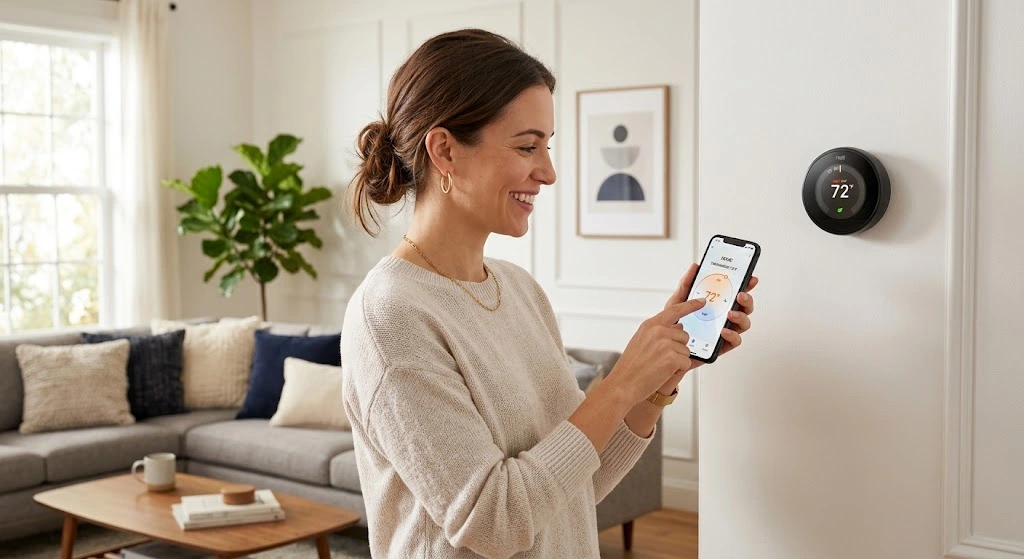
Home heating and cooling account for over half of an average household’s energy usage. Standard manual thermostats or basic non-programmable units often waste substantial energy by keeping heating systems running at full capacity when nobody is home, or maintaining unnecessarily high indoor temperatures overnight.
Upgrading to a modern smart thermostat—such as a Google Nest, Ecobee, or Honeywell Home—is one of the most cost-effective home improvement upgrades you can make. Smart thermostats utilize Wi-Fi connectivity, mobile app integration, occupancy sensors, geofencing, and adaptive machine learning algorithms to optimize heating schedules automatically. Studies consistently show that installing a smart thermostat can reduce annual heating costs by 10% to 15% and cooling costs by up to 12%.
While electrical upgrades can feel intimidating to many homeowners, installing a smart thermostat is a straightforward DIY project that requires basic tools and under an hour of work. In this exhaustive 2500+ word step-by-step master guide, you will learn how to verify system compatibility, check for a C-wire (Common Wire), safely wire your new smart thermostat, complete initial software setup, configure energy-saving schedules, and optimize advanced settings for maximum comfort and utility savings.
Step 1: Compatibility Assessment and C-Wire Verification
Before purchasing or opening a new smart thermostat, you must verify that your HVAC system is compatible and determine whether your existing wiring includes a dedicated C-Wire (Common Wire).
1. Identify Your Heating System Type
- Low-Voltage Systems (24V AC): Most central furnaces, heat pumps, and central air conditioning systems use 24-volt low-voltage wiring. Smart thermostats are designed specifically for these systems.
- High-Voltage / Line-Voltage Systems (110V–240V): Electric baseboard heaters, radiant wall heaters, and in-wall electric convectors run on high line-voltage. Standard smart thermostats will not work with line-voltage systems unless you purchase a specialized line-voltage smart thermostat (such as a Mysa). Never connect a standard 24V smart thermostat to line-voltage wires; doing so will permanently destroy the thermostat and create a severe fire hazard.
2. The Importance of the C-Wire (Common Wire)
Older manual thermostats rely on batteries or mechanical switches to control heating circuits. In contrast, modern smart thermostats feature full-color touchscreen displays, Wi-Fi radios, and internal processors that require continuous 24-volt AC electrical power.
- What the C-Wire Does: The C-wire completes the 24V circuit from your HVAC control board to supply continuous power to the thermostat.
- Checking Your Existing Thermostat Baseboard:
- Turn off power to your HVAC system at the main circuit breaker.
- Pop off your current thermostat’s front cover.
- Inspect the terminal letters on the backplate:
- R / Red: 24V Power Supply
- W / White: Heating Control Signal
- Y / Yellow: Cooling Control Signal
- G / Green: Blower Fan Control Signal
- C / Blue or Black: Common Wire (Continuous 24V Return)
3. What to Do If You Don’t Have a C-Wire
If you open your current thermostat wall plate and discover no wire connected to the “C” terminal, you have three simple options:
- Choose a Power-Stealing Thermostat: Models like the Google Nest Thermostat (E or 3rd Gen) can pull small amounts of background power through the heating or cooling wires when the system is running.
- Install a C-Wire Adapter / Power Extender Kit (PEK): Most Ecobee models include a PEK adapter box, which is installed inside your furnace’s control panel to turn a 4-wire system into a fully functional 5-wire equivalent.
- Use a 24V Plug-In Transformer: For homes without furnace access, you can run a plug-in wall adapter wire directly to the C and RC terminals of your thermostat baseplate.
Step 2: Essential DIY Tools and Safety Preparation
Working with home electrical systems—even low-voltage ones—requires strict adherence to safety protocols.
Essential Equipment Checklist:
- Tools: Small Phillips and flathead precision screwdrivers, wire strippers, needle-nose pliers, a small bubble level, and a cordless drill with drywall anchors.
- Safety Gear: A non-contact voltage tester pen to confirm zero current before touching bare wires.
- Documentation Tool: Smartphone camera to take reference photos of your original wire connections.
- Hardware: Drywall screws, wall anchors, and trim plates (if covering old paint outlines).
Safety Execution Steps:
- Power Down at the Breaker Panel: Locate your main electrical breaker box and turn off the breaker labeled “Furnace,” “HVAC,” or “Air Handler.” If the panel labels are unclear, switch off the main home power breaker.
- Confirm Power is Cut: Change your existing thermostat temperature setting to call for high heat. Wait 5 minutes to verify that your furnace blower fan does not turn on.
- Double-Check with a Voltage Tester: Touch a non-contact voltage tester against the R and W wire terminals on the wall plate to confirm that zero voltage is flowing.
Step 3: Removing the Old Thermostat and Labeling Wires
Accurate wire labeling is the single most critical step in preventing blown fuses or malfunctioning heat circuits.
- Photograph Existing Wiring: Take multiple clear, well-lit photos of your current thermostat’s terminal block showing every wire color connected to its respective terminal letter (e.g., Yellow wire to Y, White wire to W).
- Apply Terminal Wire Labels: Use the adhesive label stickers provided inside your new smart thermostat package. Wrap the sticker corresponding to the terminal letter (NOT the wire color) around each wire end.
- Important Note: Never rely solely on wire color! Electricians sometimes use non-standard wire colors (such as a green wire for C or a blue wire for Y). Always label wires based on the terminal letter they were screwed into.
- Disconnect Wires Carefully: Loosen the terminal screws using a precision screwdriver and pull the wires out.
- Secure Wires from Falling: Wrap the wires together loosely or tape them to the wall surface so they do not slip back through the hole into the wall cavity.
- Remove Old Mounting Plate: Unscrew the old baseplate from the drywall and discard it.
Step 4: Installing the Smart Thermostat Baseplate and Wiring
Now that your wires are labeled and secured, you can install your new smart thermostat baseplate.
1. Position and Level the Wall Plate
- Thread the HVAC wires through the center opening of your new thermostat wall plate.
- Place a small bubble level on top of the plate to align it perfectly straight.
- Mark the screw pilot holes onto the drywall using a pencil.
2. Secure Drywall Anchors
- If the screw holes do not align with wooden wall studs, tap hollow-wall plastic drywall anchors into the marked pencil spots using a small hammer.
- Drive the mounting screws through the baseplate into the anchors until snug. Avoid over-tightening, which can crack plastic mounting plates.
3. Connect Wires to Smart Terminals
Push-fit smart thermostat terminals do not require screws; simply depress the terminal tab, insert the stripped copper wire tip fully into the corresponding terminal slot, and release the tab to lock it in place.
- Standard 5-Wire Mapping Table:
| Wire Label | Standard Color | Smart Baseplate Terminal | Function |
| R / Rc | Red | R / Rc | 24VAC Power Supply |
| W / W1 | White | W / W1 | Stage 1 Heating Control |
| Y / Y1 | Yellow | Y / Y1 | Stage 1 Cooling Control |
| G | Green | G | Blower Fan Control |
| C | Blue / Black | C | Common Return Wire (Continuous Power) |
If your system includes heat pumps (O/B terminals) or multi-stage heating (W2, Y2), refer to your smart thermostat manual’s advanced wiring diagrams.
4. Mount the Display Unit
Gently push any excess wire slack back into the wall hole to prevent drafts from affecting the thermostat’s internal temperature sensors. Seal the wire hole with removable caulk or insulation foam if necessary. Align the smart thermostat display over the baseplate and press firmly until it snaps into place.
Step 5: Power Up and Complete Mobile App Commissioning
With the hardware installed, restore electrical power and complete software onboarding.
- Restore Power: Flip your HVAC circuit breaker back to the “ON” position. The smart thermostat display screen will illuminate and begin its boot sequence.
- Download the Mobile App: Install the corresponding manufacturer smartphone app (Google Home app for Nest, Ecobee app, or Resideo app for Honeywell) on your iOS or Android device.
- Connect to Home Wi-Fi: Follow the on-screen display prompts to select your home 2.4GHz or 5GHz Wi-Fi network and enter your password.
- App Pairing & Equipment Configuration:
- Scan the QR code displayed on the thermostat screen using your phone camera.
- Specify your heating fuel source (e.g., Natural Gas, Electric, Forced Air, Hydronic Baseboard, Heat Pump).
- Confirm detected wire connections on screen to ensure the thermostat recognizes all attached HVAC stages correctly.
Step 6: Advanced Energy-Saving Configuration and Programming
Installing the device is only half the battle; configuring intelligent automation features maximizes energy savings on heating bills.
1. Set Up Geofencing (Home/Away Assist)
Geofencing uses your smartphone’s GPS location to determine when family members leave or return home.
- Away Mode Activation: When all registered smartphones leave a pre-set radius (e.g., 1 mile from your home), the thermostat automatically transitions into “Away Mode,” lowering heating temperatures to a money-saving setback temperature (such as 62°F / 16.5°C).
- Pre-Heating on Approach: As soon as a smartphone enters the geofence perimeter heading home, the thermostat turns the heat back up so your home reaches a comfortable 68°F (20°C) right as you unlock the front door.
2. Configure Smart Heating Schedules
Program adaptive temperature setbacks based on household daily routines:
- Morning (6:30 AM – 8:30 AM): 68°F (20°C) while waking up and preparing for work/school.
- Daytime Setback (8:30 AM – 5:00 PM): 62°F (16.5°C) while the house is unoccupied.
- Evening (5:00 PM – 10:30 PM): 68°F (20°C) during family dinner and relaxation hours.
- Overnight Setback (10:30 PM – 6:30 AM): 62°F–64°F (16.5°C–18°C) while sleeping under heavy blankets.
3. Enable Adaptive Early Start / Smart Recovery
Smart thermostats learn how long your specific home takes to heat up based on outdoor weather conditions and insulation quality. Instead of turning on heating blast at 6:00 AM, an adaptive early start feature calculates that the furnace needs to start at 5:42 AM so the living room reaches exactly 68°F right at 6:00 AM—avoiding wasteful energy spikes.
4. Optimize Fan Circulation Schedules
Set your indoor blower fan to run for 10 to 15 minutes per hour even when heat is off. Continuous low-speed air circulation prevents warm air from stratifying near high ceilings and keeps room temperatures uniform across all floors without cycling the furnace burner on.
Quick Reference Maintenance & Troubleshooting Guide
| Problem | Cause | DIY Solution |
| Thermostat display will not turn on | No power flowing; missing C-wire or blown furnace fuse. | Check circuit breaker, verify C-wire voltage with a multimeter, or check the 3-amp purple blade fuse on your furnace control board. |
| System blows cold air when heat is called | Incorrect O/B heat pump reversing valve configuration. | Open app settings -> Equipment -> Heat Pump. Switch the O/B valve setting from “Energize on Cool” to “Energize on Heat” (or vice versa). |
| Short-Cycling (Furnace turns on/off rapidly) | Overheating furnace or poor thermostat placement near drafts. | Replace dirty furnace air filters. Ensure thermostat is not exposed to direct sunlight, TV heat, or drafty entryways. |
| Wi-Fi keeps disconnecting | Weak 2.4GHz network signal or interference. | Move Wi-Fi router closer, separate 2.4GHz and 5GHz network SSIDs, or install a Wi-Fi mesh range extender. |
Summary Checklist for Maximum Energy Savings
- Choose a 24V smart thermostat and verify or install a C-wire / power adapter.
- Turn off power at the main breaker before handling any wiring.
- Take reference photos and label every wire based on terminal letters, not wire colors.
- Enable Geofencing (Home/Away Assist) in your smartphone app.
- Set overnight and daytime heating setbacks to 62°F–64°F (16.5°C–18°C).
- Set fan circulation to 10–15 minutes per hour to balance room temperatures.
- Enroll in your utility provider’s Demand Response / Eco-Match program for annual rebate credits.
Final Thoughts
Upgrading to a smart thermostat is one of the highest-ROI DIY home improvement projects available. By taking control of home heating schedules, preventing heating empty rooms, utilizing phone geofencing, and monitoring monthly energy reports through mobile apps, you can keep your home comfortably warm throughout winter while cutting utility expenses month after month.
